DocsSection 13
Settings
Open the main window's Settings tab, or choose Settings… (⌘,) in the tray's ⋯ menu. The sidebar lists ten sections.
Permissions
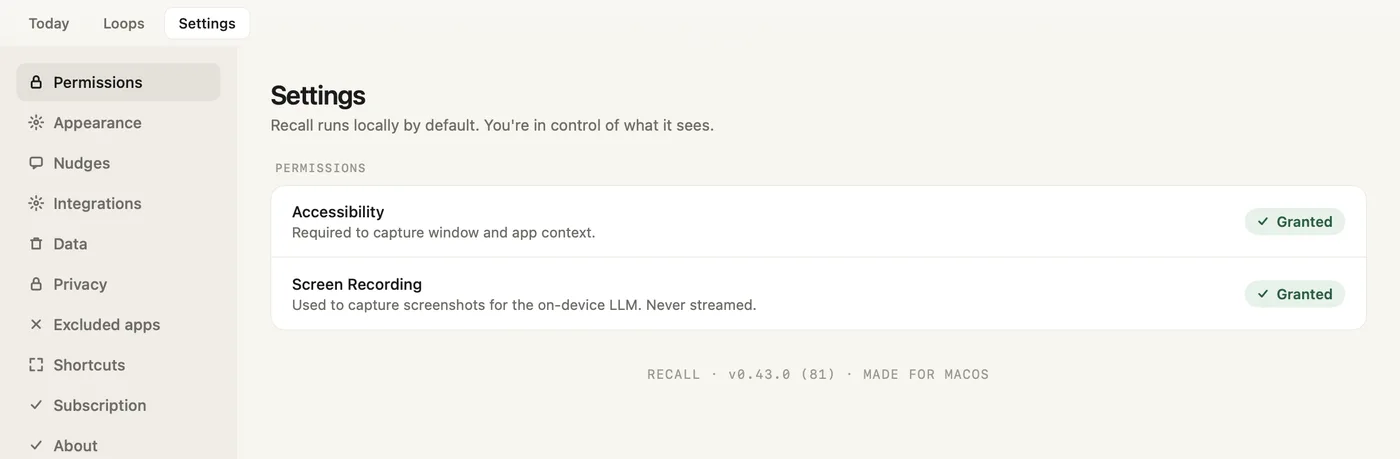
- The sections. Permissions, Appearance, Nudges, Integrations, Data, Privacy, Excluded apps, Shortcuts, Subscription, About.
- Accessibility. Lets Recall read which app and window are in front. Shows Granted or Not granted.
- Screen Recording. Lets the on-device AI look at your screen. Never streamed anywhere.
- Version. The Recall version and build.
Appearance
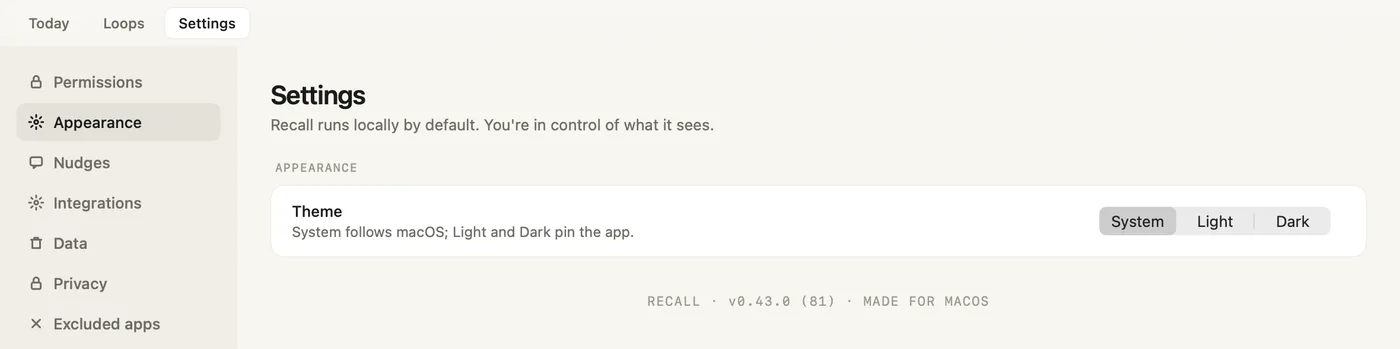
- Theme. System follows macOS. Light and Dark keep Recall in one look.
Nudges
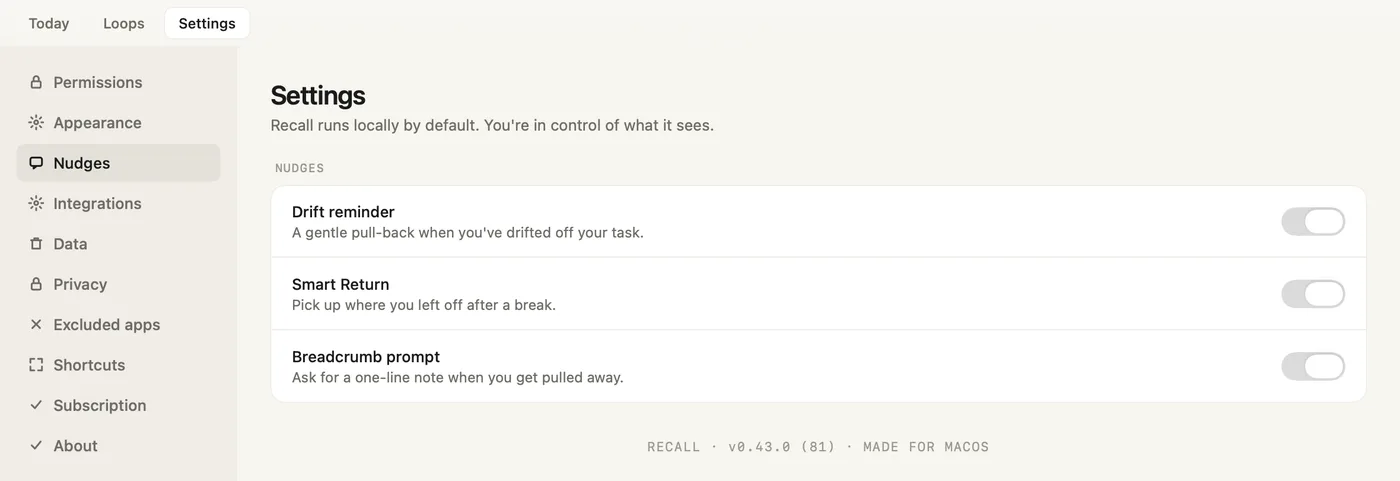
- Drift reminder. A gentle pull back when you drift off your task.
- Smart Return. Shows Smart Return by itself when you come back from a break. ⌥⌘R works either way.
- Breadcrumb prompt. Shows the "Leave a note?" pill when you get pulled away.
Integrations
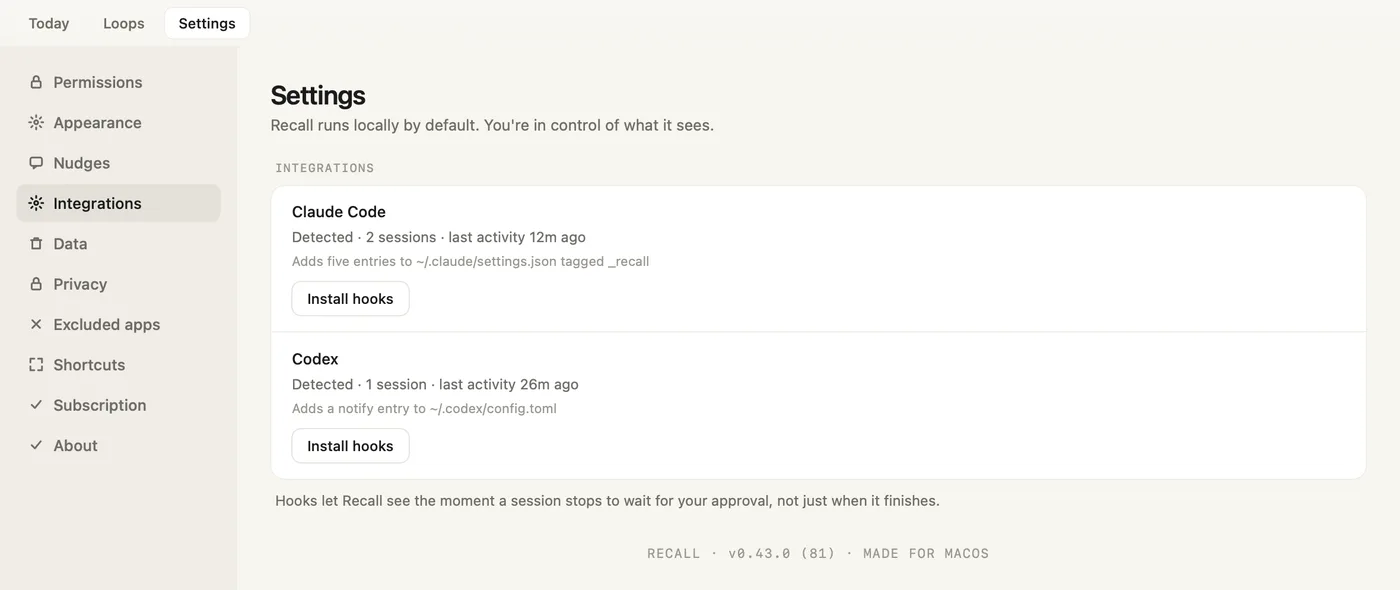
- Claude Code. Whether Recall found it, how many sessions and their last activity.
- Install hooks. Adds five entries, tagged so they're easy to find, to
~/.claude/settings.json. After that the button reads Remove hooks. - Codex. The same, for Codex.
- Install hooks. Adds a notify entry to
~/.codex/config.toml. - Why hooks. Hooks let Recall see the moment a session stops to wait for your approval, not just when it finishes. See Coding agents.
Data
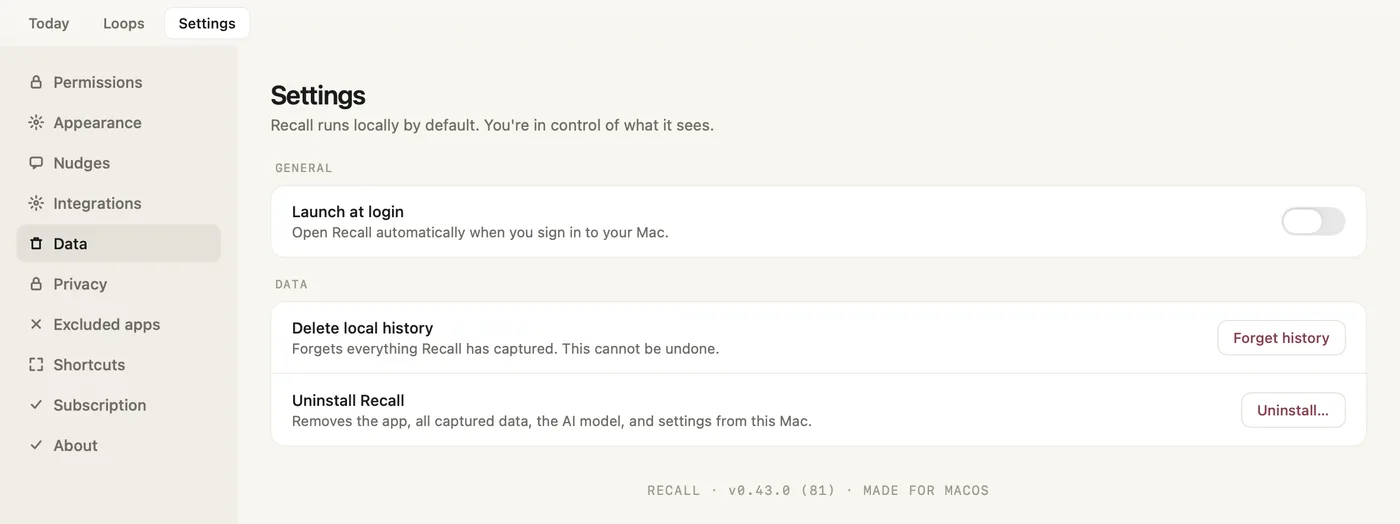
- Launch at login. Opens Recall when you sign in to your Mac.
- Forget history. Deletes everything Recall has captured on this Mac. It also deletes your analytics data and feedback conversations on Recall's servers. This can't be undone.
- Uninstall… Removes the app, all captured data, the AI model and settings from this Mac.
Privacy
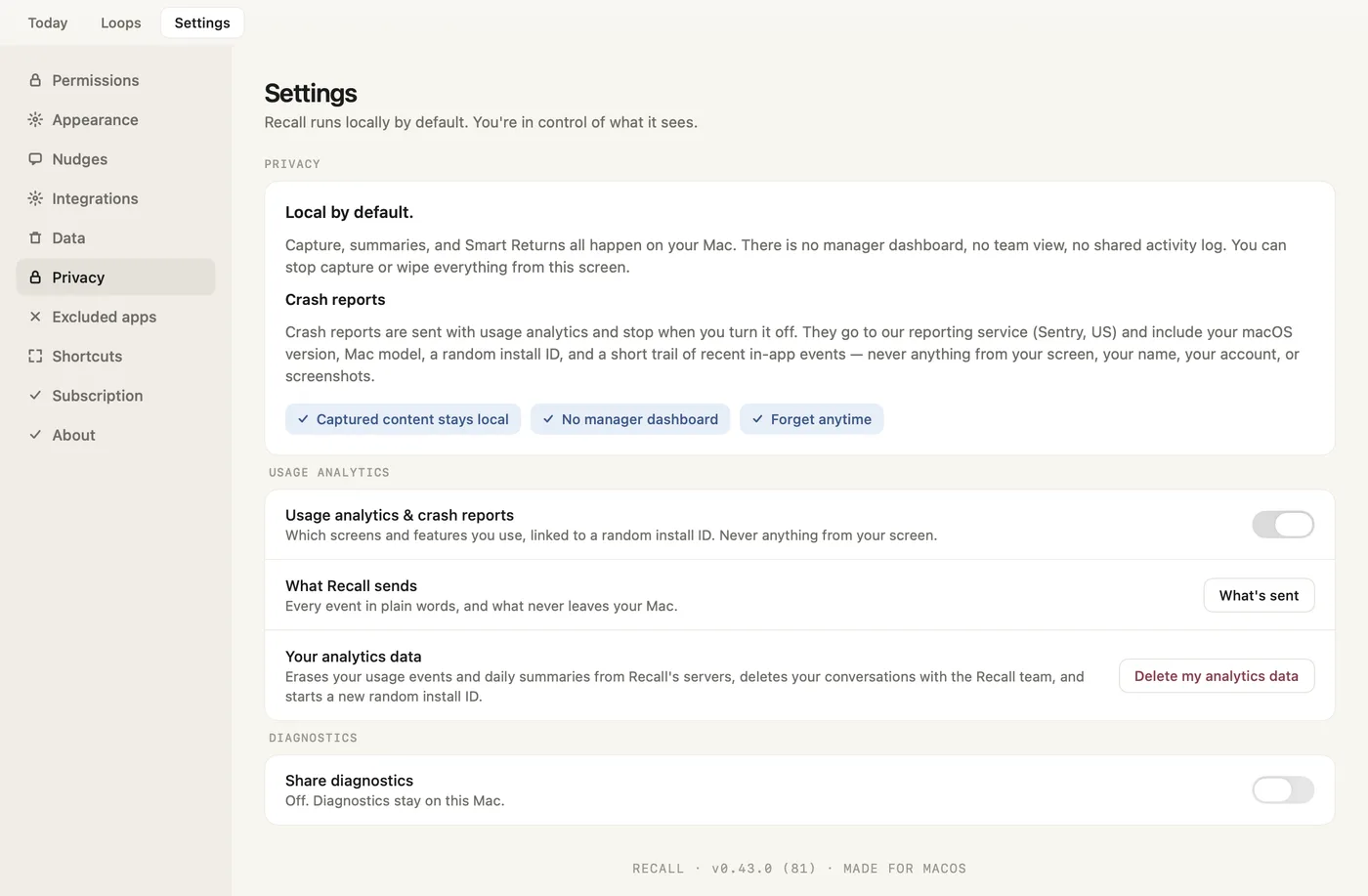
- Local by default. Capture, summaries and Smart Return all happen on your Mac. There is no manager dashboard, no team view and no shared activity log.
- Crash reports. What a crash report carries: macOS version, Mac model, the random install ID and a short trail of recent in-app events. Never anything from your screen, your name or your account.
- The three promises. Captured content stays local · No manager dashboard · Forget anytime.
- Usage analytics & crash reports. One switch for both. On by default. With it off, Recall sends one note that you turned it off, and after that only anonymous setup counts.
- What's sent. Opens a sheet that lists every event in plain words, what never leaves your Mac, how long it is kept, and a real sample.
- Delete my analytics data. Erases your usage events and daily summaries from Recall's servers, deletes your conversations with the team, and starts a new random install ID.
- Share diagnostics. Off by default. While it is off, diagnostics stay on this Mac.
Excluded apps
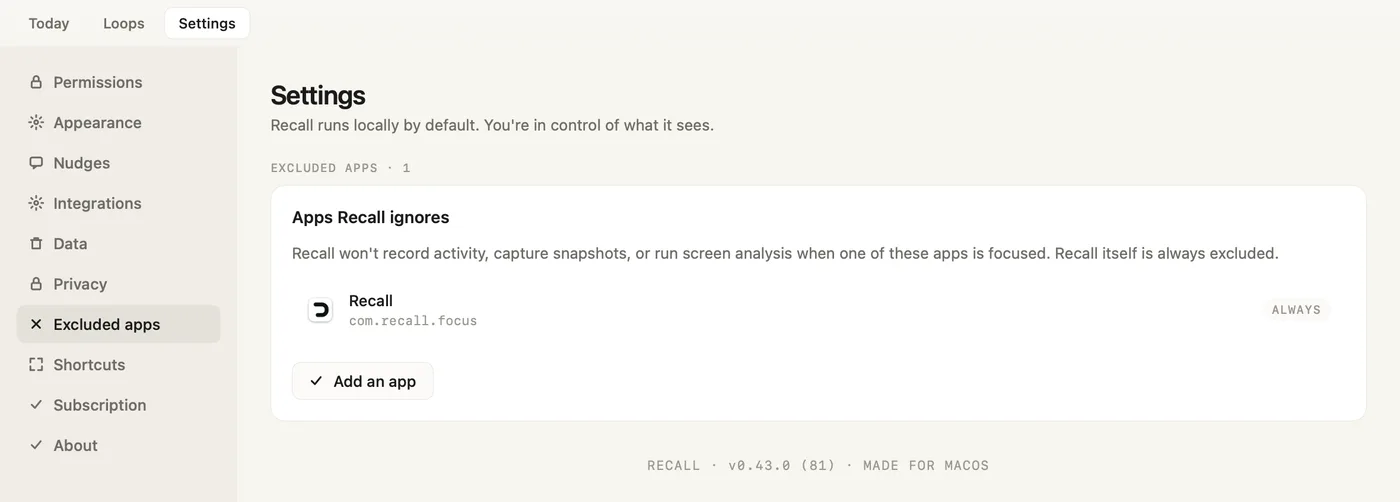
- Apps Recall ignores. While one of these apps is in front, Recall records no activity, takes no snapshot and runs no screen analysis.
- Recall, ALWAYS. Recall never looks at itself.
- Add an app. Pick an app to exclude. Remove it from the list to include it again.
Shortcuts
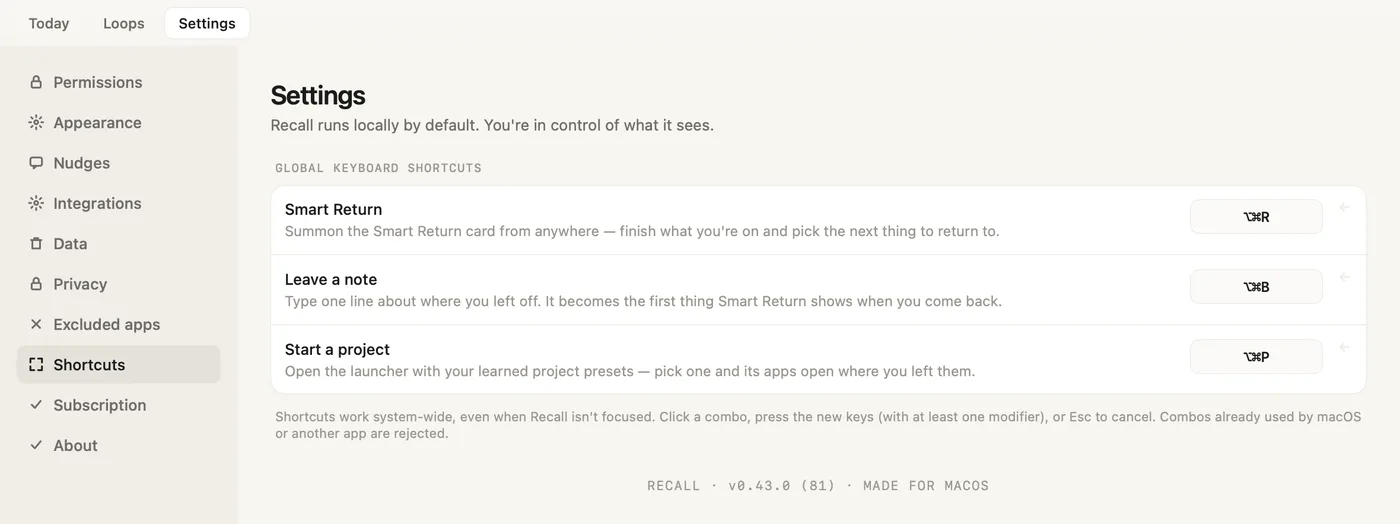
- Smart Return. Opens the Smart Return card from anywhere.
- Leave a note. Opens the note panel from anywhere.
- Start a project. Opens the launcher with your learned project setups: pick one and its apps open where you left them.
- Changing a shortcut. Click a combination, press the new keys (with at least one modifier), or press Esc to cancel. Combinations macOS or another app already uses are refused. The arrow beside each row resets it.
Subscription
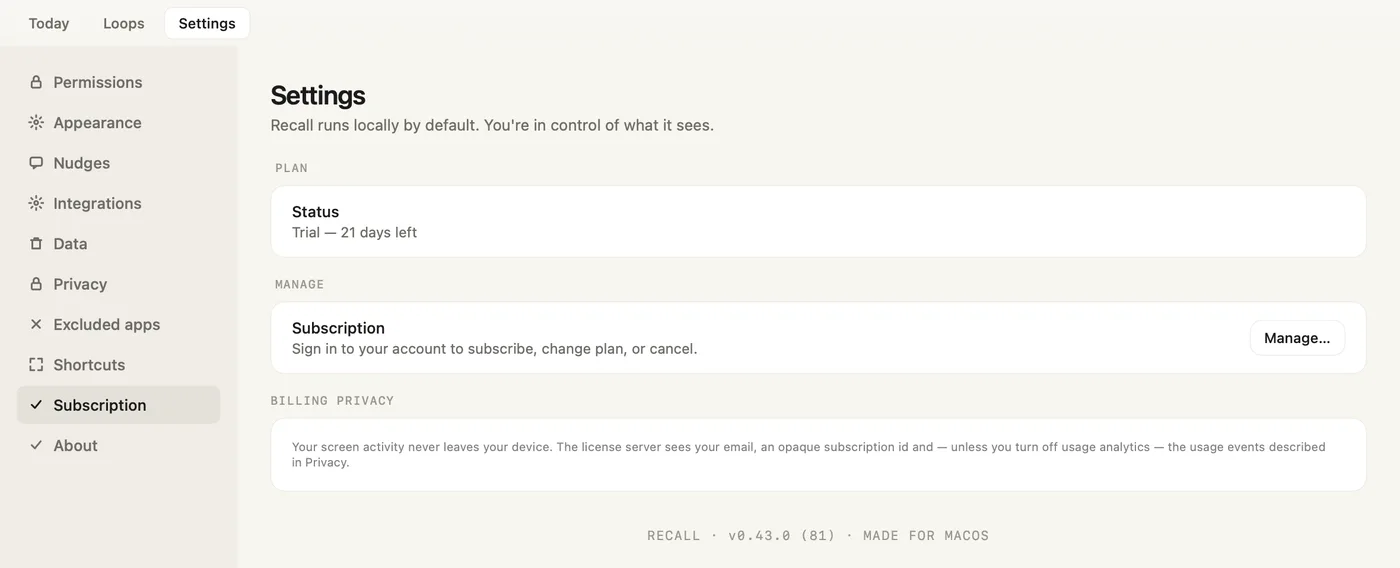
- Status. Your plan, or how many trial days are left.
- Manage… Sign in to your account to subscribe, change plan or cancel.
- Billing privacy. The licence server sees your email and a subscription ID, plus usage events unless you turn them off. Your screen activity never leaves your Mac.
About
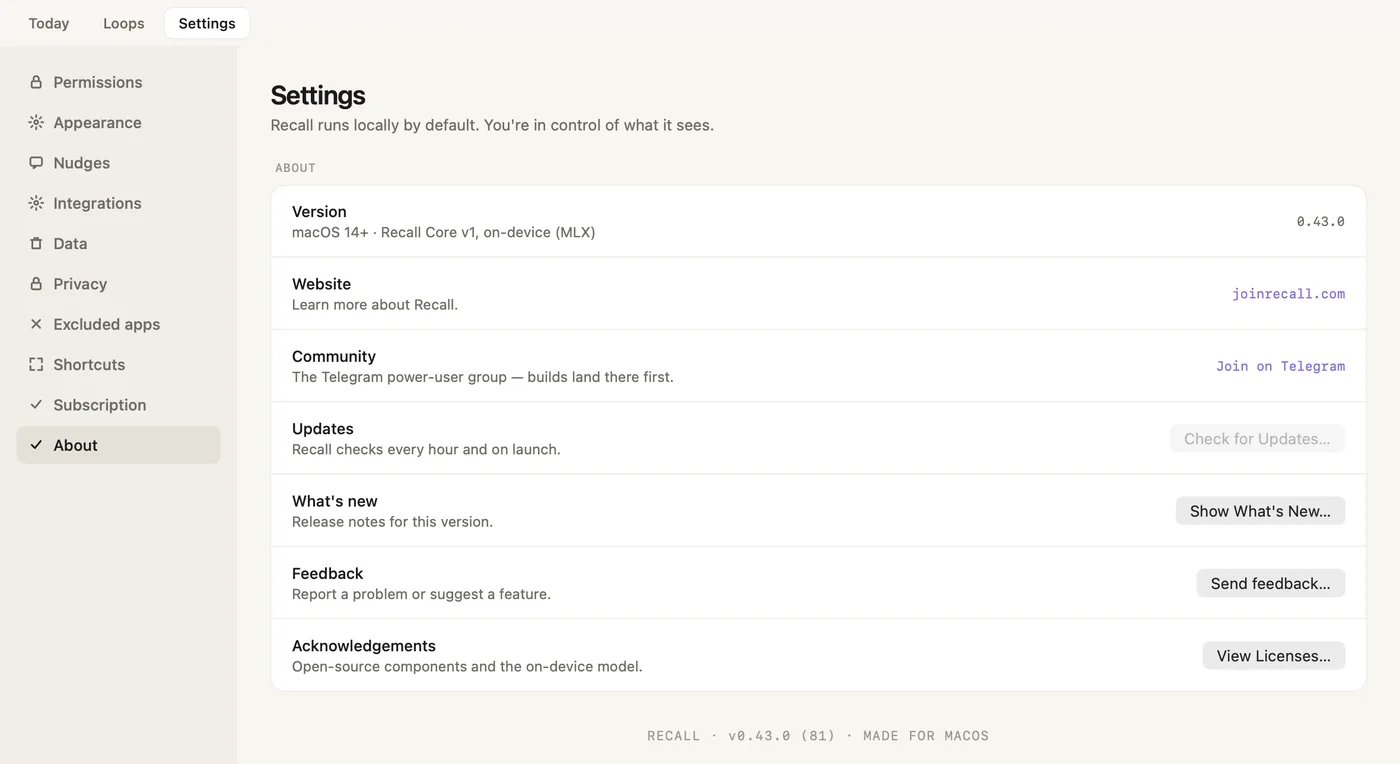
- Version. The Recall version you are running.
- Website. Opens joinrecall.com.
- Community. Join the Telegram power-user group, where builds land first.
- Check for Updates… Recall also checks every hour and at launch.
- Show What's New… Opens the release notes for this version.
- Send feedback… Opens the Feedback window.
- View Licenses… The open-source components and the on-device model.
Screenshots show a fictional demo day. All people, projects and messages are made up.