DocsSection 7
Notes
A note is one line you leave yourself when something pulls you away: where you stopped, what's next. Press ⌥⌘B from anywhere. Recall shows your note first the next time you come back to that work.
The note panel
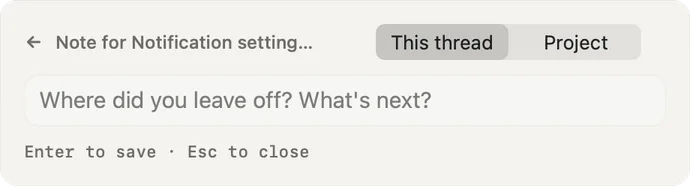
- Note for… The thread the note will be attached to: the one in the window you are in.
- This thread / Project. Leave the note on this thread, or on a whole project.
- The field. Type one line. "Where did you leave off? What's next?"
- Enter to save, Esc to close. Nothing is saved if you press Esc.
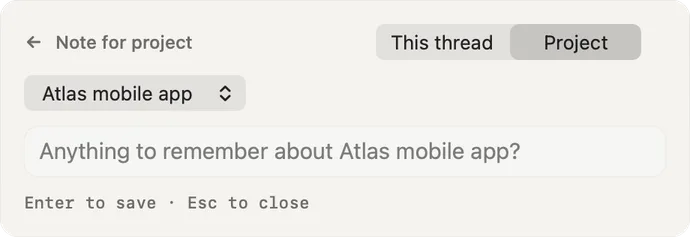
- Project. Selected: the note belongs to a project, not one thread.
- Project menu. The thread's own project is chosen for you. Every active project is one click away, most recent first.
- The field. Anything to remember about the project, such as a deadline or a decision.
- Enter to save, Esc to close.
The "Leave a note?" prompt
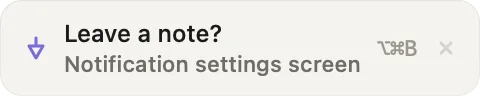
- Leave a note? When Recall sees you get pulled away, this small pill appears at the top right with the thread's name. Click it to open the note panel.
- ⌥⌘B. The shortcut does the same. Ignore the pill and it goes away; it never takes your keystrokes. The faint × dismisses it.
You can turn the prompt off in Settings → Nudges → Breadcrumb prompt.
Thread notes and project notes
- A thread note belongs to that thread. It leads Smart Return's card when that thread is on it, and shows as a YOUR NOTE row in the waiting list. After Done, show next, the next note you left comes up.
- A project note belongs to the project, and keeps belonging to it if you rename or merge the project. It shows as one line on Smart Return whenever a thread of that project is on the card, on the project page, and in the project's Loops list. It never changes which thread Recall offers first.
Loops → Notes
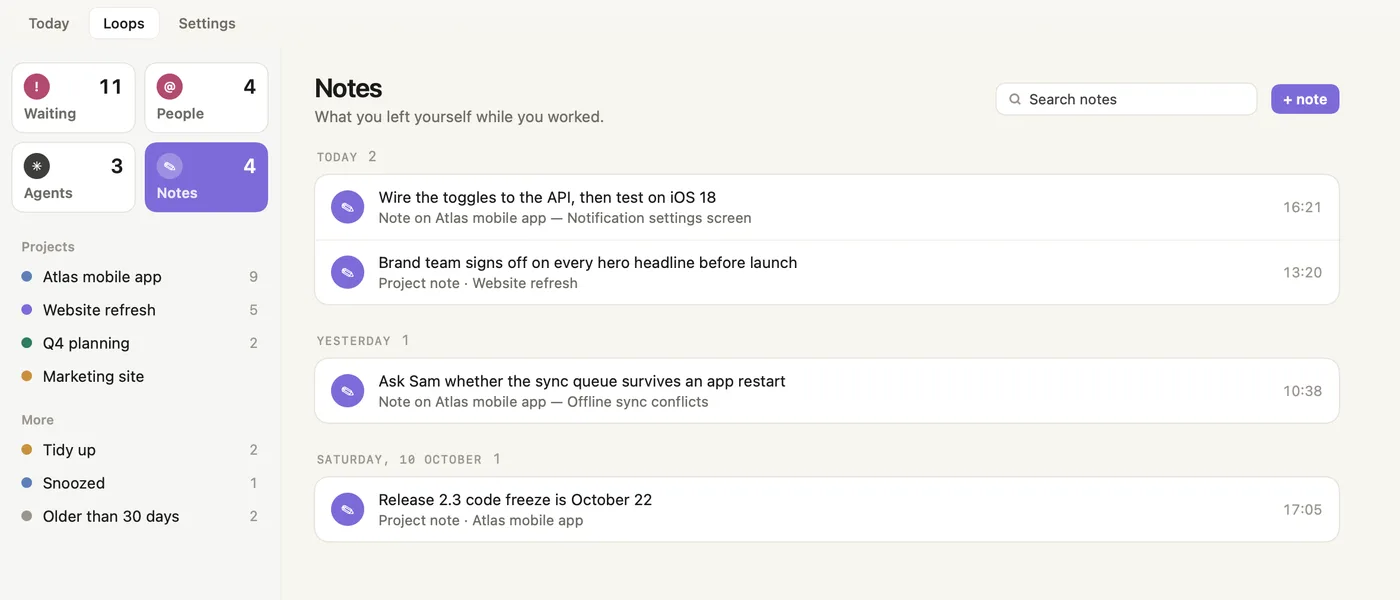
- Search notes. Finds any note by its words.
- + note. Leaves a new note from here.
- Day groups. Notes are grouped by the day you left them.
- Thread note. The note, and the project and thread it belongs to. Click it to open that thread.
- Project note. Marked "Project note", with its project.
Screenshots show a fictional demo day. All people, projects and messages are made up.