How Recall works

Recall brings you back to the work.

Recall follows the work on your screen, groups it into threads and projects, and brings you back to where you were after a break or an interruption.
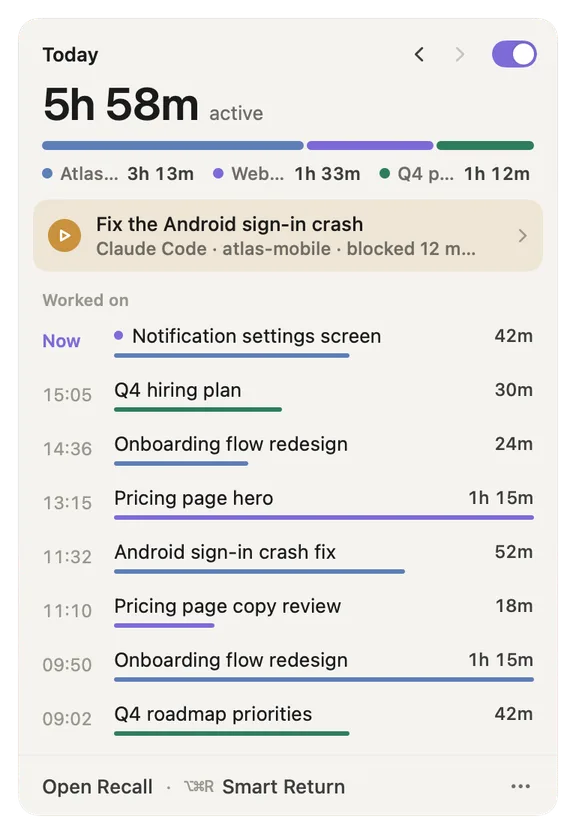
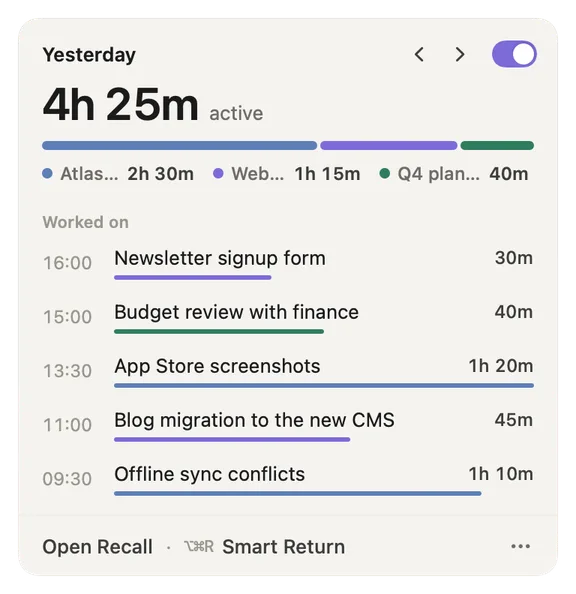
The Recall menu bar tray: today's active time split by project, an agent waiting on your approval, and the threads you worked on, newest first
The mechanism

Four quiet moves, start to finish.

No timers, no streaks, nothing to manage. Recall runs in the background and holds the thread for you. Recall Core, our own model, runs entirely on your Mac.

Capture

Sees the shape of your work

The tab you stayed on, the file you edited, the message that pulled you out. Quiet, in the background, with nothing to create, tag or start.

Understand

Your work becomes threads and projects

Related tabs, files and chats become one named thread, filed under a project Recall finds from the work itself: a repo, a document, a site.

Hold

Holds the thread while you are away

Lunch, a Slack reply, a quick errand. Leave one line with Option Command B and Recall keeps the thread, your note and what you had open.

Return

One click back to where you were

Not a list of recent apps. The tab, the workspace, the Claude Code or Codex chat you had open, listed and ticked. Nothing opens until you say so.

Today

Your day as a timeline, one lane per project.

Open Recall and the first tab is Today: what you worked on and when, the thread to return to, and what you owe people. Below it, today's work by project, with breaks kept apart.
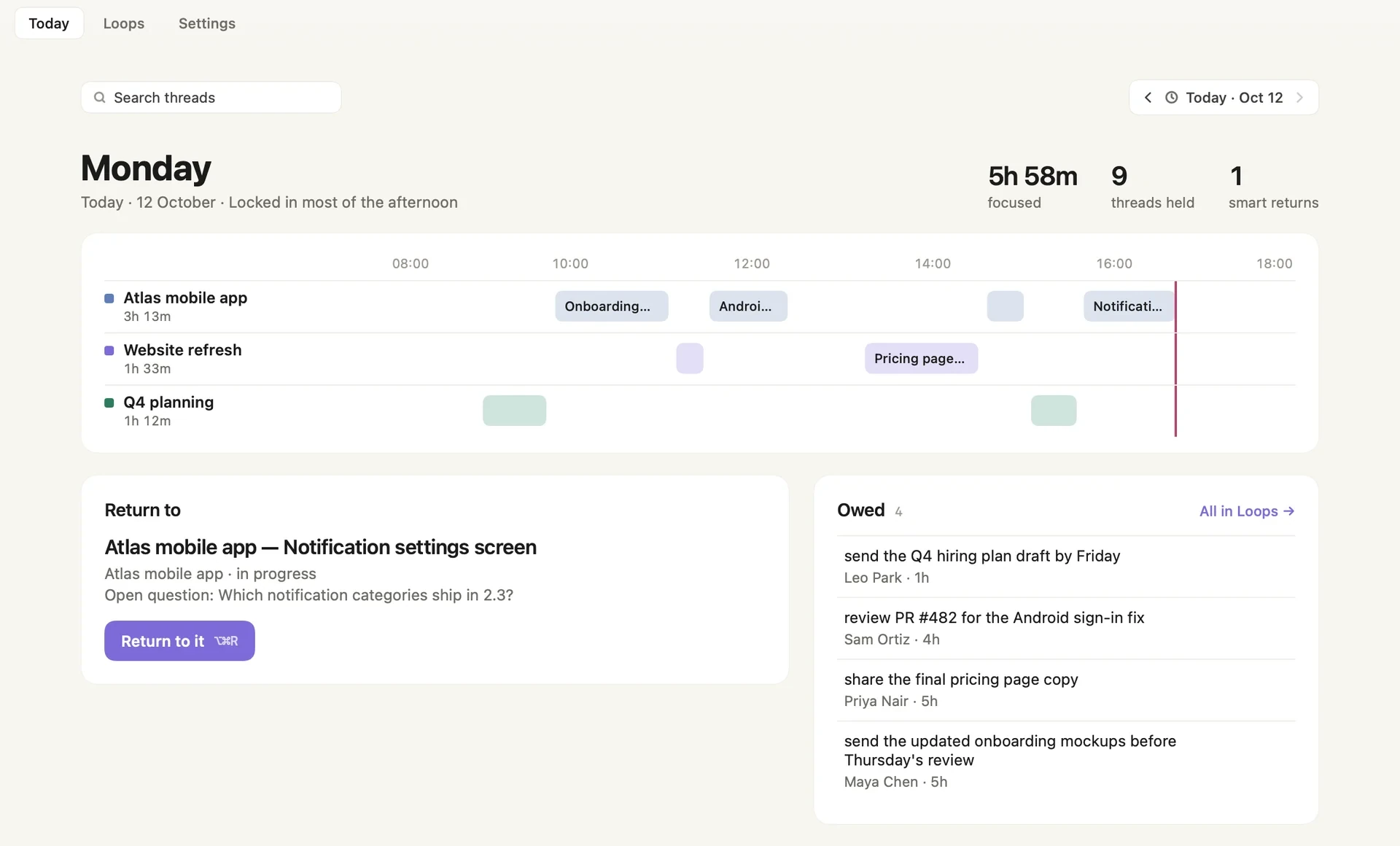
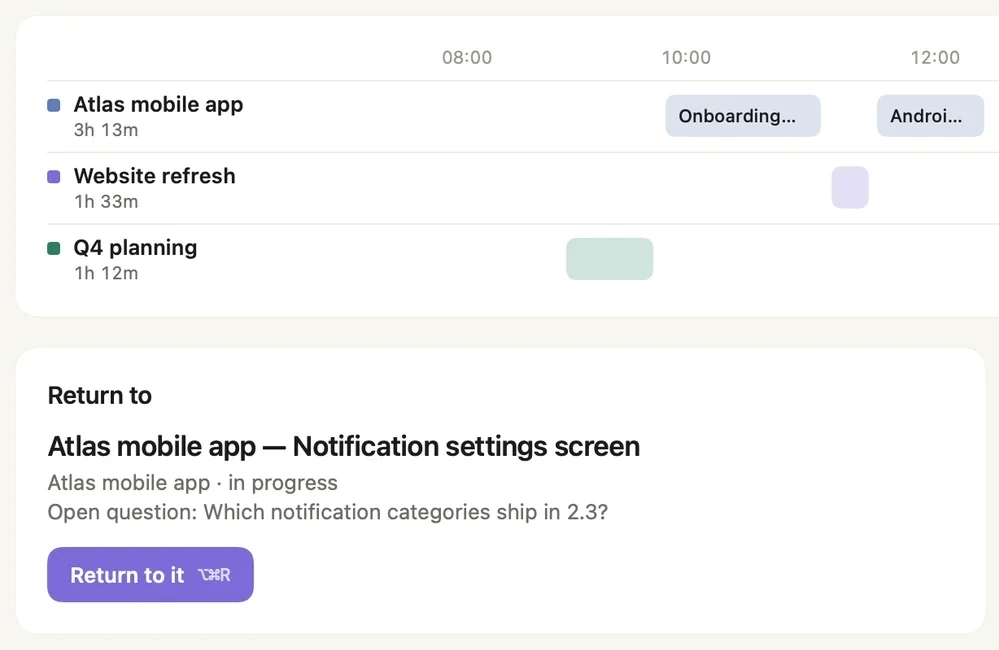
The Today tab: the day as a timeline with one lane per project, a Return to card with its open question, and the Owed list
The Today tab: one lane per project on the timeline, and a Return to card with its open question
Project lanes
One lane per project, with its time today. Click a block to open its thread.
Return to
The thread you most likely want back, with its open question.
Owed
What people asked you for and what you promised, with how long ago.
Today's work
Tasks by project, Active or Done. Tick one when it is finished.
Breaks
Shown apart from your work time, so you can see where the day went.

How Today works

Notes

Leave yourself one line.

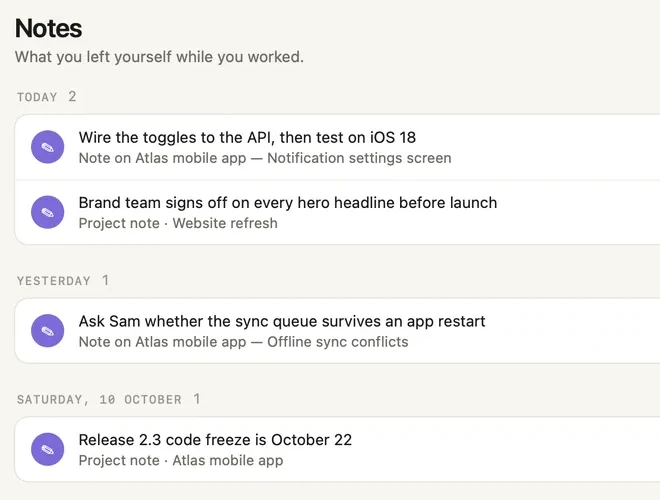
When something pulls you away, press Option Command B from anywhere and type where you stopped and what's next. Smart Return shows your note first when you come back.

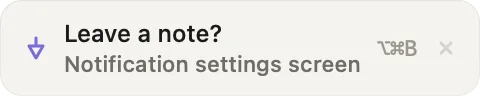
The Leave a note? pill with the thread name and the Option Command B shortcut
Leave a note?

A prompt that never interrupts

When Recall sees you get pulled away, a small pill appears at the top right. Ignore it and it goes away. It never takes your keystrokes.
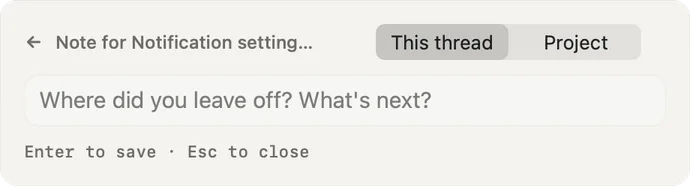
The note panel set to This thread, with a one-line field asking where you left off
This thread

One line on your thread

Enter saves, Esc closes. The note leads the Smart Return card the next time you come back to that work.
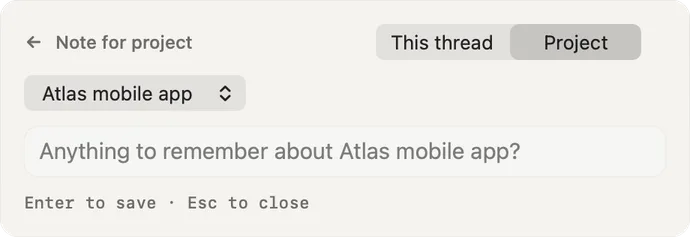
The note panel switched to Project, with the project picked and a field for the project note
Project

Or a note for the whole project

A deadline or a decision. It shows on Smart Return whenever a thread of that project is on the card.

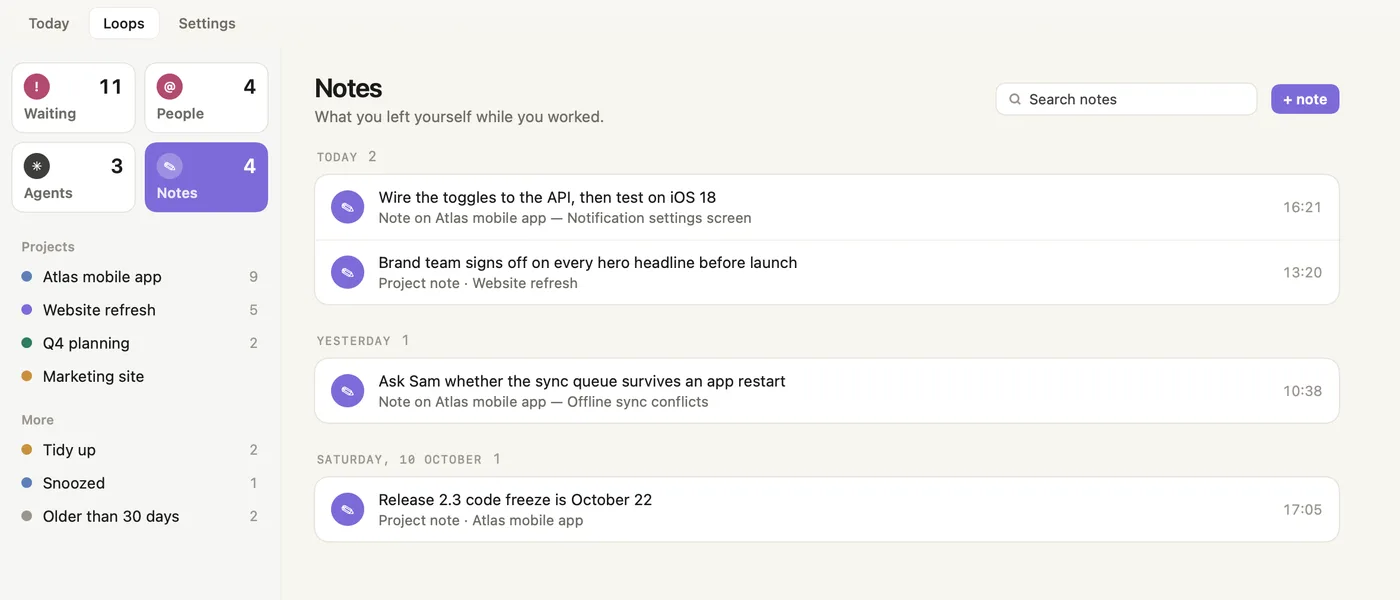
Done archives a note. It is never lost. How notes work

Loops

Everything still open, in lists.

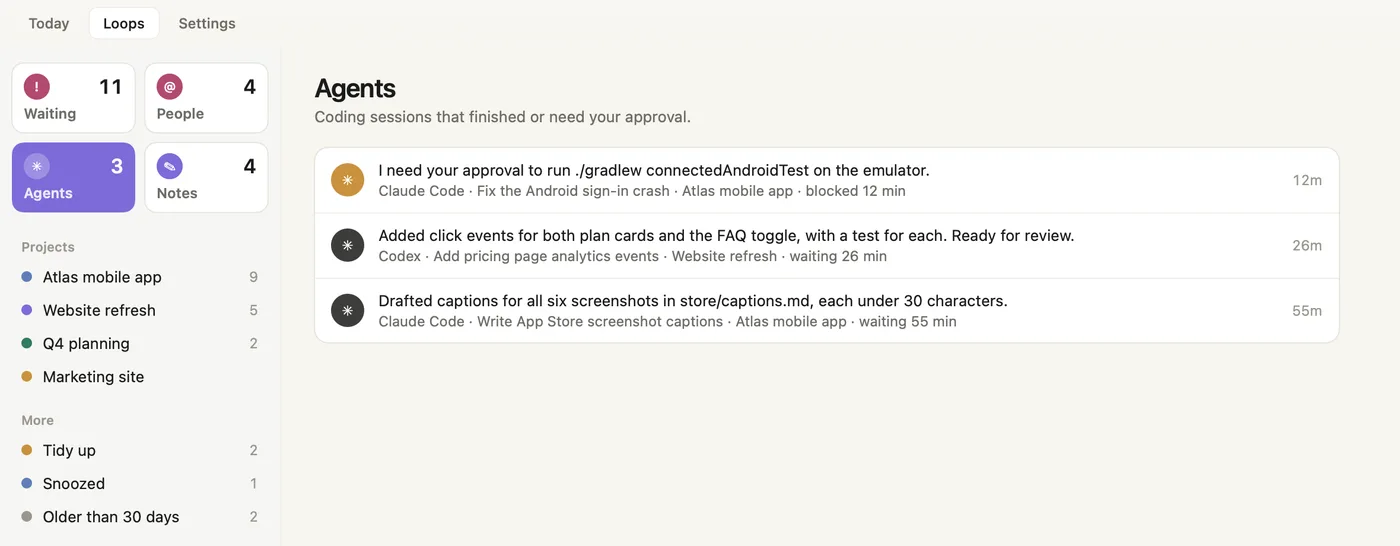
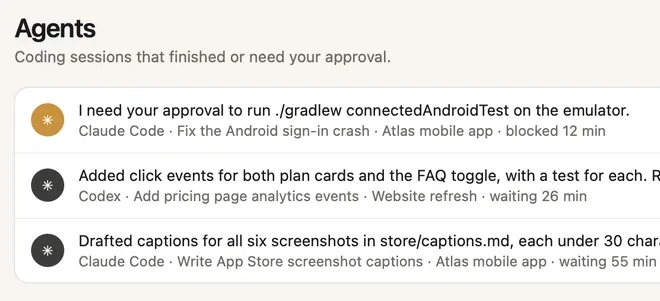
Loops is a page of lists, like Reminders: people waiting on you, coding agents, your notes, and one list per project. It is strict about unfinished work, and its counts are people, agents and your notes, never guesses.

What people asked you for in Slack, Teams, Telegram, WhatsApp or Mail, and what you promised.
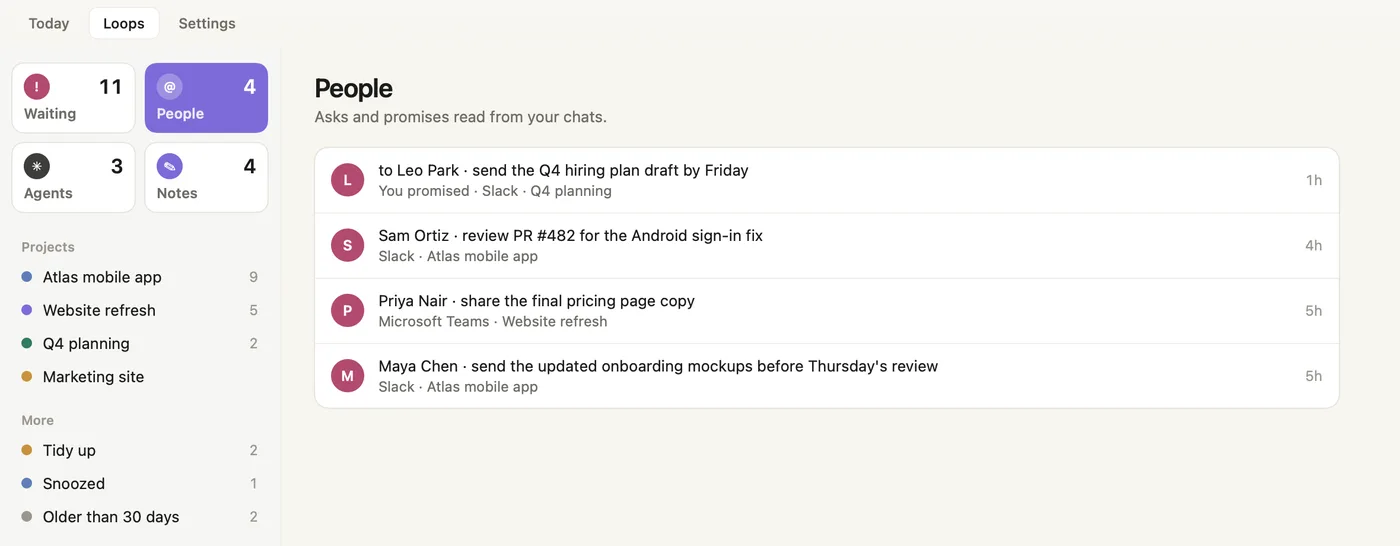
Loops, the People list: requests from Slack and Microsoft Teams, and a promise to Leo Park

What people asked you for in Slack, Teams, Telegram, WhatsApp or Mail, and what you promised.
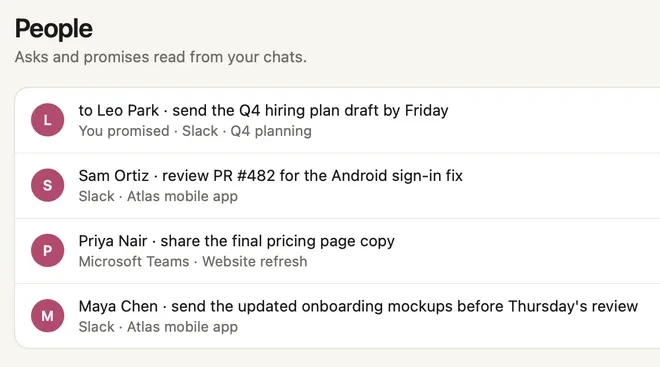
Loops, the People list: requests from Slack and Microsoft Teams, and a promise to Leo Park

How Loops works

Projects and threads

Recall files the work for you.

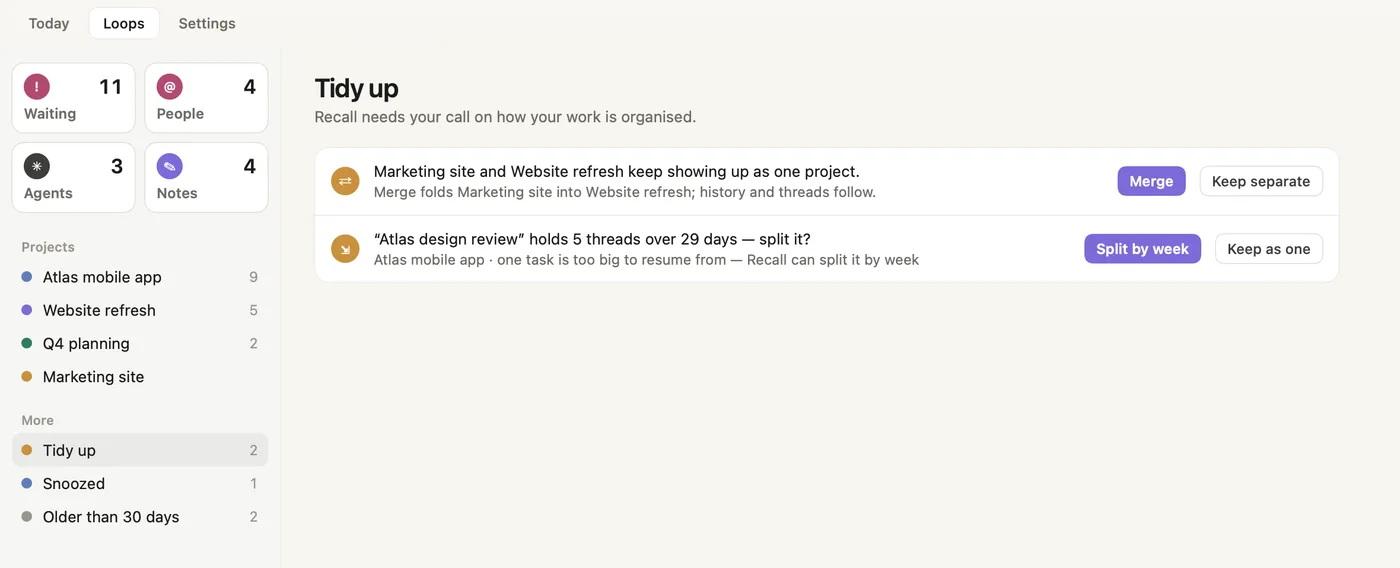
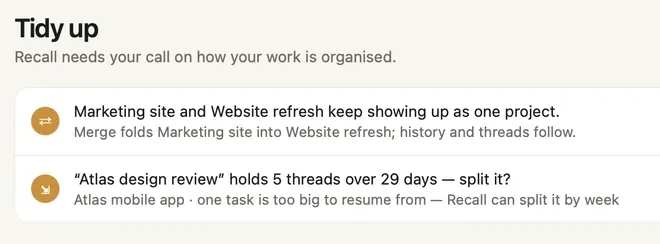
Projects come from the work itself: a repo, a document, a site, the people you talk to about it. They get the names people would use, and you can rename, merge or archive any of them.
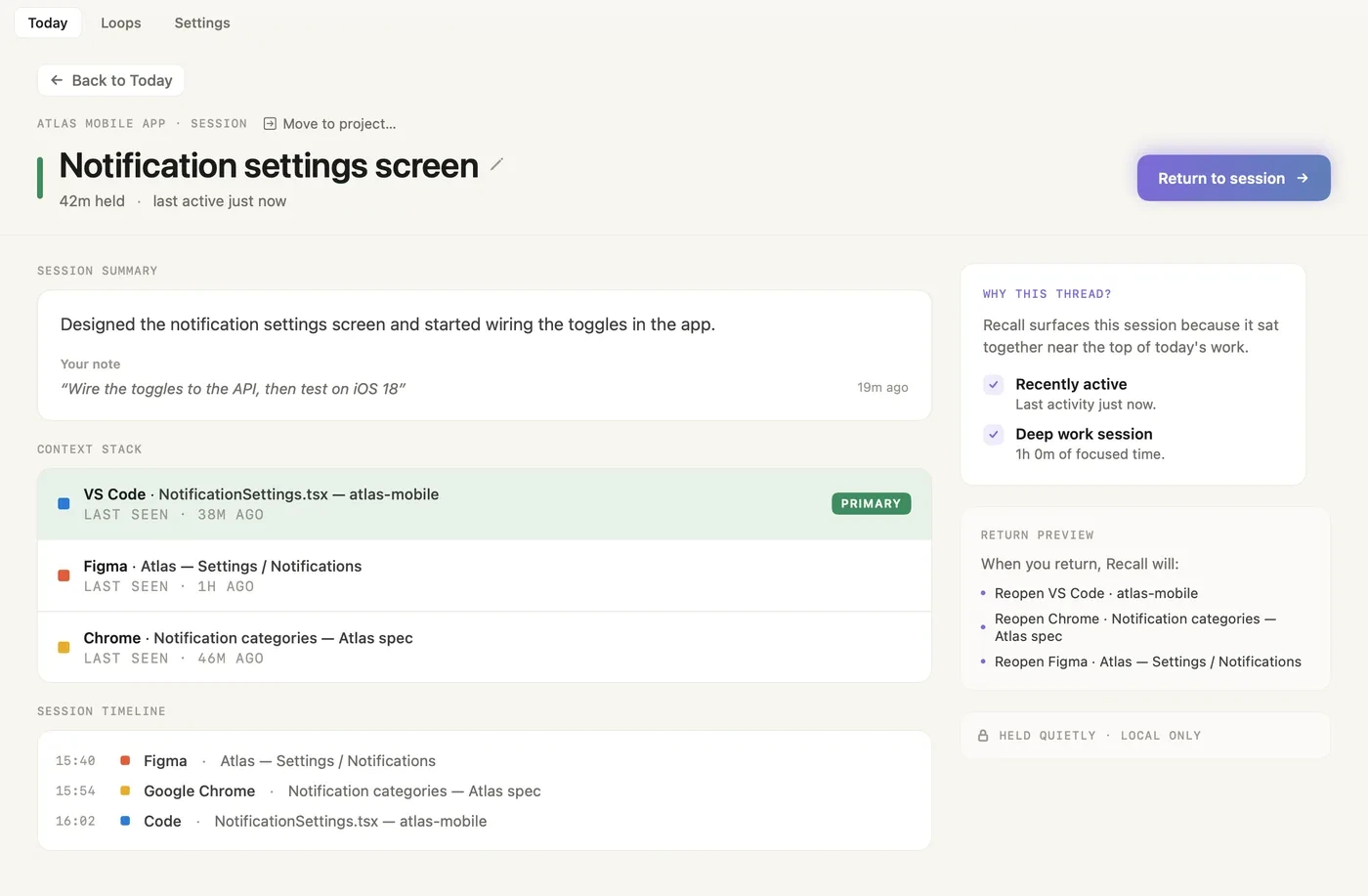
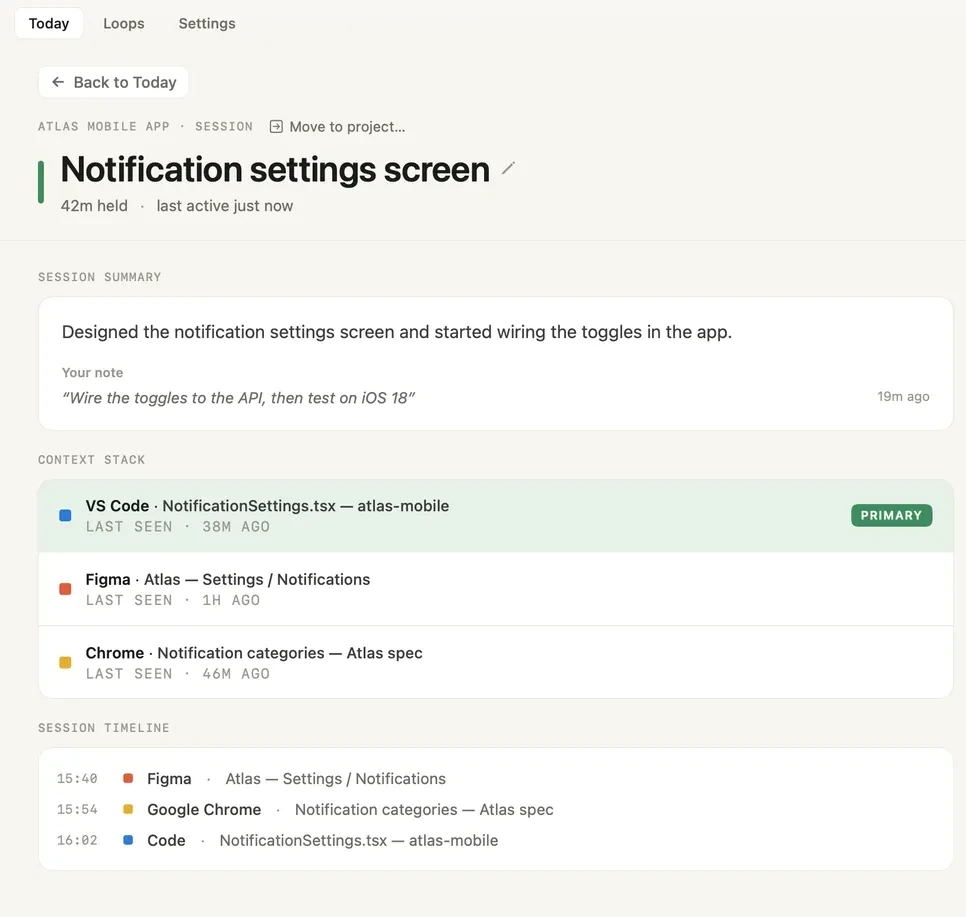
The thread page

Every thread keeps its own page.

What was done, your note, the windows it had open and the one you were last on. Return to session shows what will reopen before anything does.
A thread page: the session summary with your note, the context stack with the primary window, the session timeline and the return preview
A thread page: the session summary with your note, the context stack with the primary window and the session timeline
Move to project

One picker, and Recall learns from it.

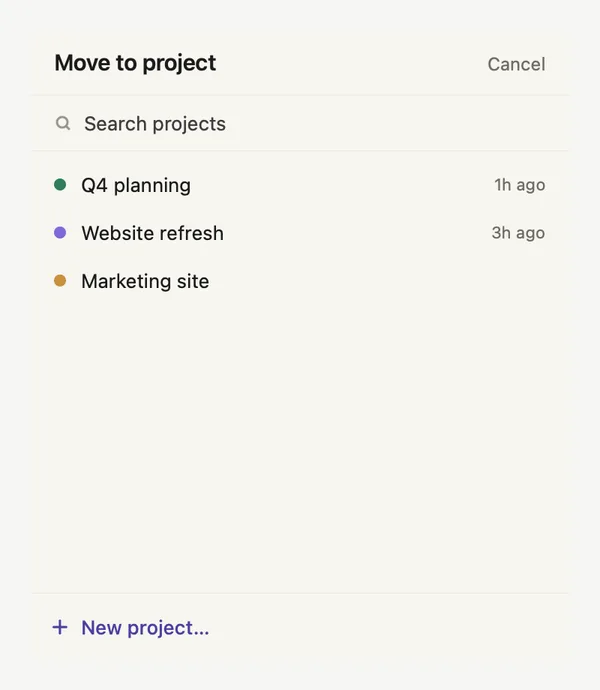
Move to project works on anything: a task, a thread, a note, a request from a chat, an agent session. Recall learns from every move, and a name you give a project stays.
The Move to project picker: a search field, active projects with when work was last filed, and New project
Quiet by default

It speaks up in three cases.

Each one is the same small card at the bottom right, and nothing pops up over a Smart Return that is already open.

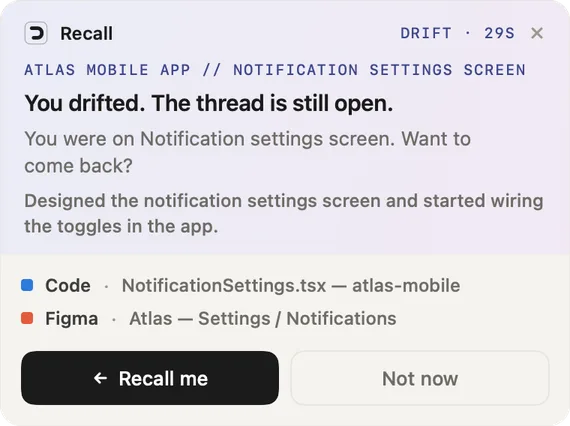
The drift reminder card with the thread you drifted from, its apps, and the Recall me and Not now buttons
Drift reminder

When you drift off your task

A clear detour gets a gentle reminder after about five minutes. Work that looks like research gets a longer leash.
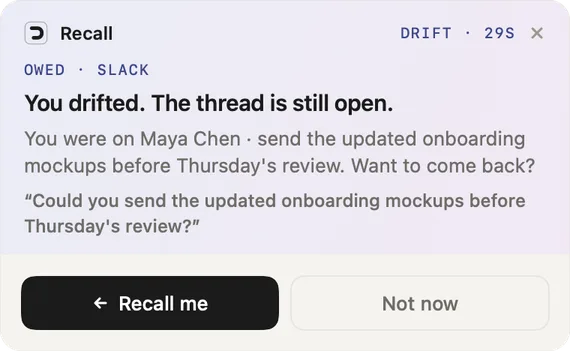
A reminder about a message owed in Slack, with the request and the Recall me and Not now buttons
Ask reminder

When something you owe sits unanswered

At most once a day for each one, never more than one an hour, and never while you are still in that conversation.
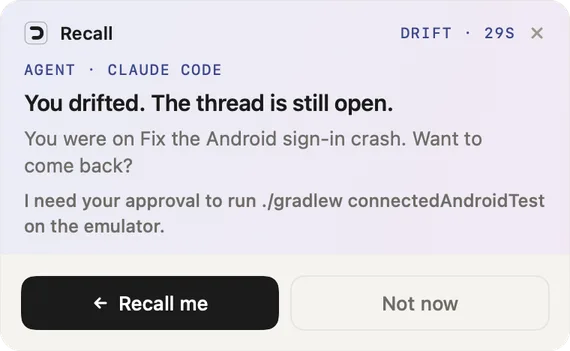
A reminder about a Claude Code session waiting for approval, with its request and the Recall me and Not now buttons
Blocked agent

When an agent needs your approval

With the optional hooks on, a Claude Code or Codex session that has waited five minutes for your approval gets one nudge. An agent that only finished its turn never nags.

Settings → Nudges has three switches: Drift reminder, Smart Return (after a break) and Breadcrumb prompt (the Leave a note? pill). How nudges work

When you want it, three shortcuts.

They work from anywhere. Change them in Settings → Shortcuts.

  • Option Command RSmart ReturnThe thread you left and what is waiting on you.
  • Option Command BLeave a noteOn the thread you are in, or on a project.
  • Option Command PStart a projectThe launcher with your learned project setups.
What Recall keeps

Structured context, not a recording.

Recall looks at your screen about every 15 seconds. A local AI describes what is there, then the image is discarded. What it keeps stays in a folder on your Mac.

What it keeps

  • Short descriptions of what was on screen
  • App names and window titles
  • Active time. Time away from your Mac never counts
  • Your corrections and moves, so they stick
  • Notes you leave with Option Command B

What it never keeps

  • Anything while Recall is paused, your screen is locked or you are away
  • Apps you exclude in Settings → Excluded apps
  • Content that looks private, such as adult or dating content
  • DM and email body content, except the tasks from your chats
  • Microphone, camera, keystrokes and clipboard: never used

Usage analytics and crash reports are on by default. Analytics say which screens and features get used, and neither ever carries anything from your screen. One switch in Settings → Privacy turns both off. Read the privacy guide

Get back to the work, not the app.

Recall runs quietly while you work and brings you back to the exact thread when focus breaks.
Download for macOS
30-day free trialApple Silicon (M1+), macOS 14+Locked-in early-user pricing
See Smart Return →