Getting started
Recall runs on Macs with Apple silicon (M1 or newer) and macOS 14 or later. When you open it for the first time, a setup window walks you through five steps: Welcome, Privacy, About you, Beta and Ready. It takes a couple of minutes.
Step 1: Welcome
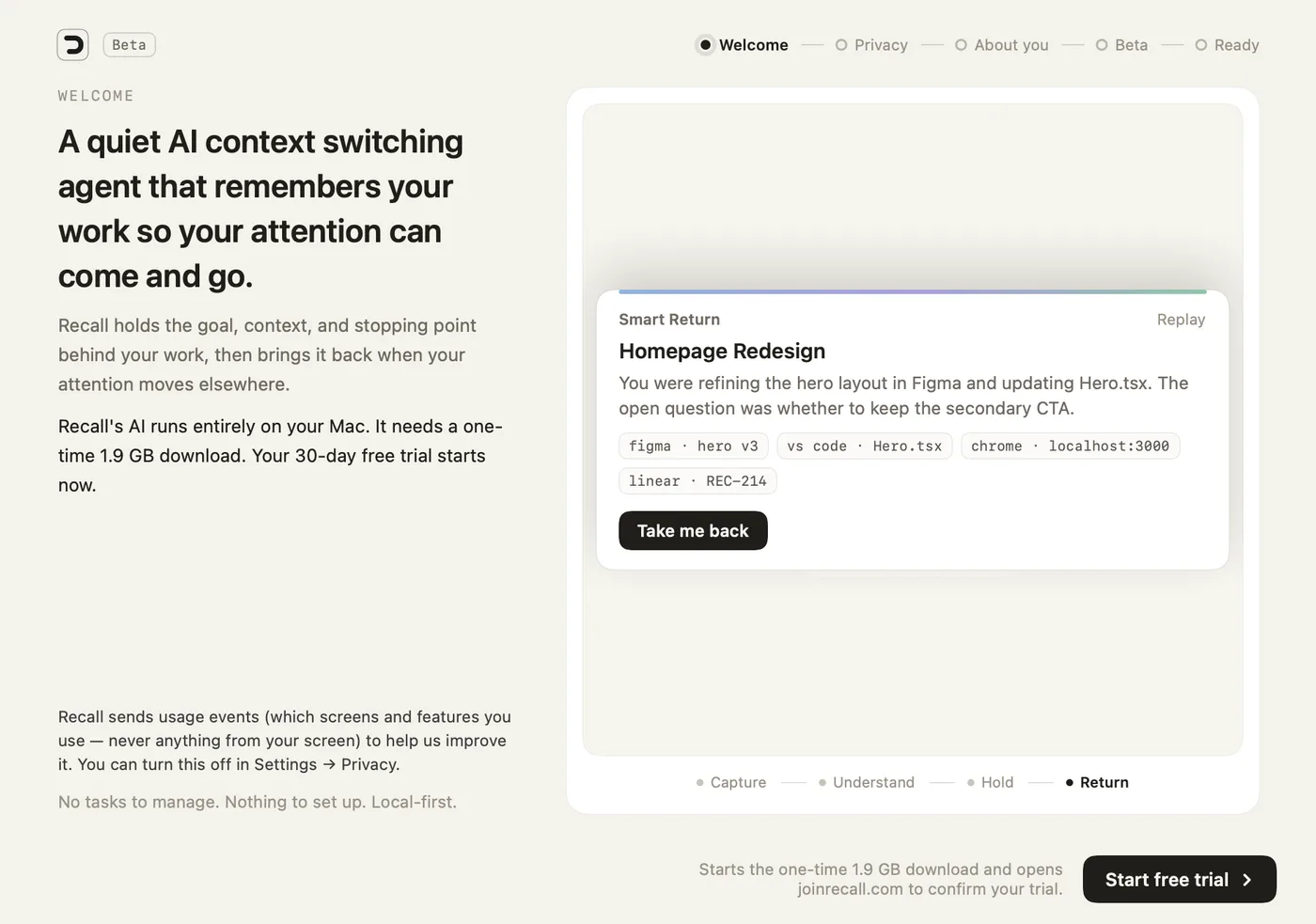
- The five steps. Shows where you are in setup. You can go back to any earlier step with Back.
- What setup will do. Recall's AI runs entirely on your Mac, so it needs a one-time download of about 1.9 GB. Your 30-day free trial starts here.
- Usage analytics notice. Recall sends usage events (which screens and features you use, never anything from your screen). You can turn this off any time in Settings → Privacy.
- Example return. A short animation of what Recall does: Capture, Understand, Hold, Return.
- Start free trial. Starts the download and opens joinrecall.com to confirm your trial. Nothing downloads and no page opens until you click it.
Step 2: Privacy and permissions
Recall needs two macOS permissions to see what you are working on. It never uses the microphone or the camera.
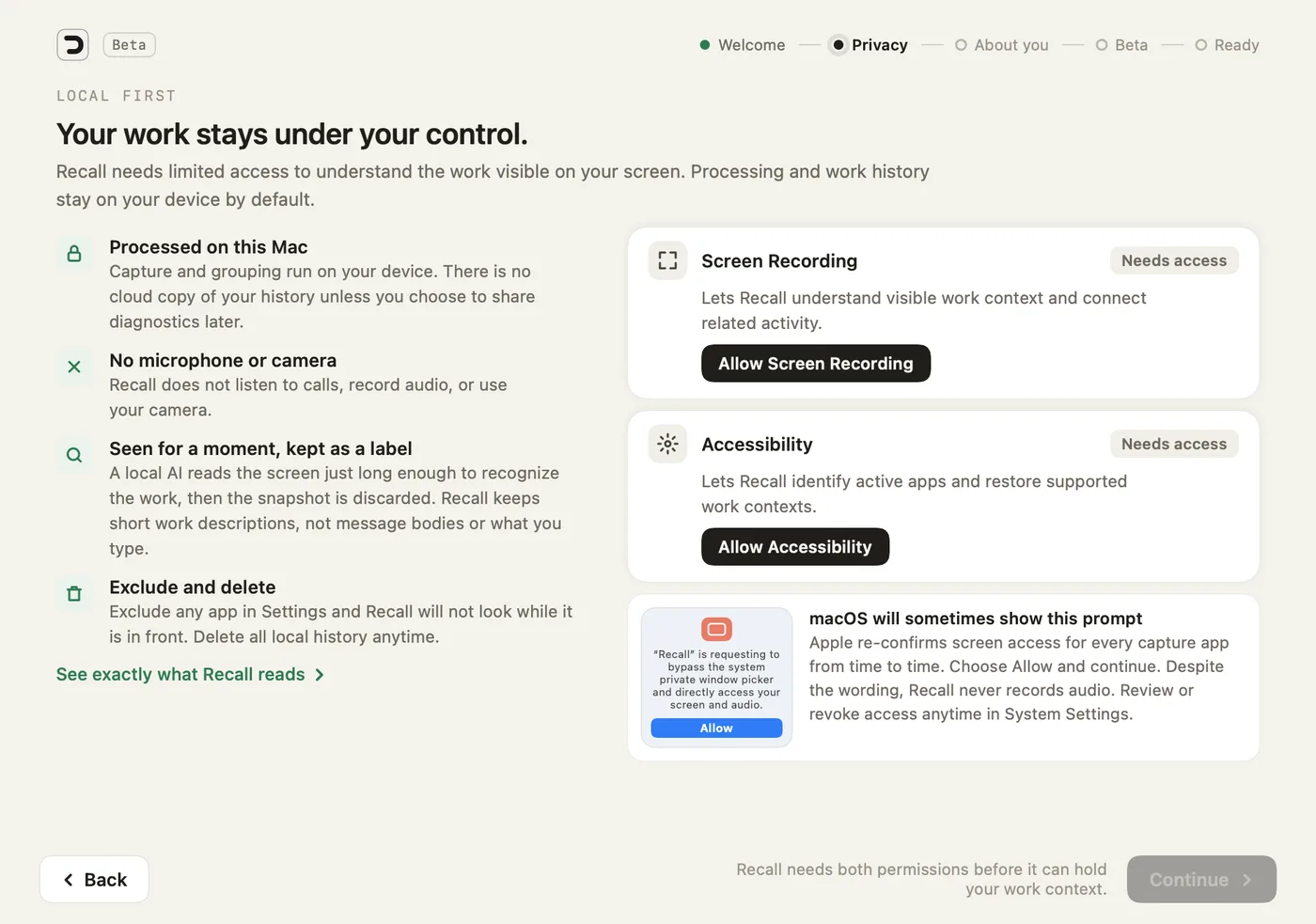
- Four promises. Processing happens on this Mac, there is no microphone or camera, the screen is seen for a moment and kept only as a short label, and you can exclude apps and delete history.
- See exactly what Recall reads. Opens the full list of what Recall keeps and what it never touches.
- Screen Recording, Allow Screen Recording. Opens System Settings so you can switch Recall on. Recall uses it to understand the work visible on your screen.
- Accessibility, Allow Accessibility. Lets Recall read which app and window are in front, and reopen supported apps where you left them.
- The macOS prompt. macOS asks again from time to time whether a screen-capture app may keep its access. Choose Allow. Despite the wording, Recall never records audio.
- Continue. Stays greyed out until both permissions are granted, because Recall can't follow your work without them.
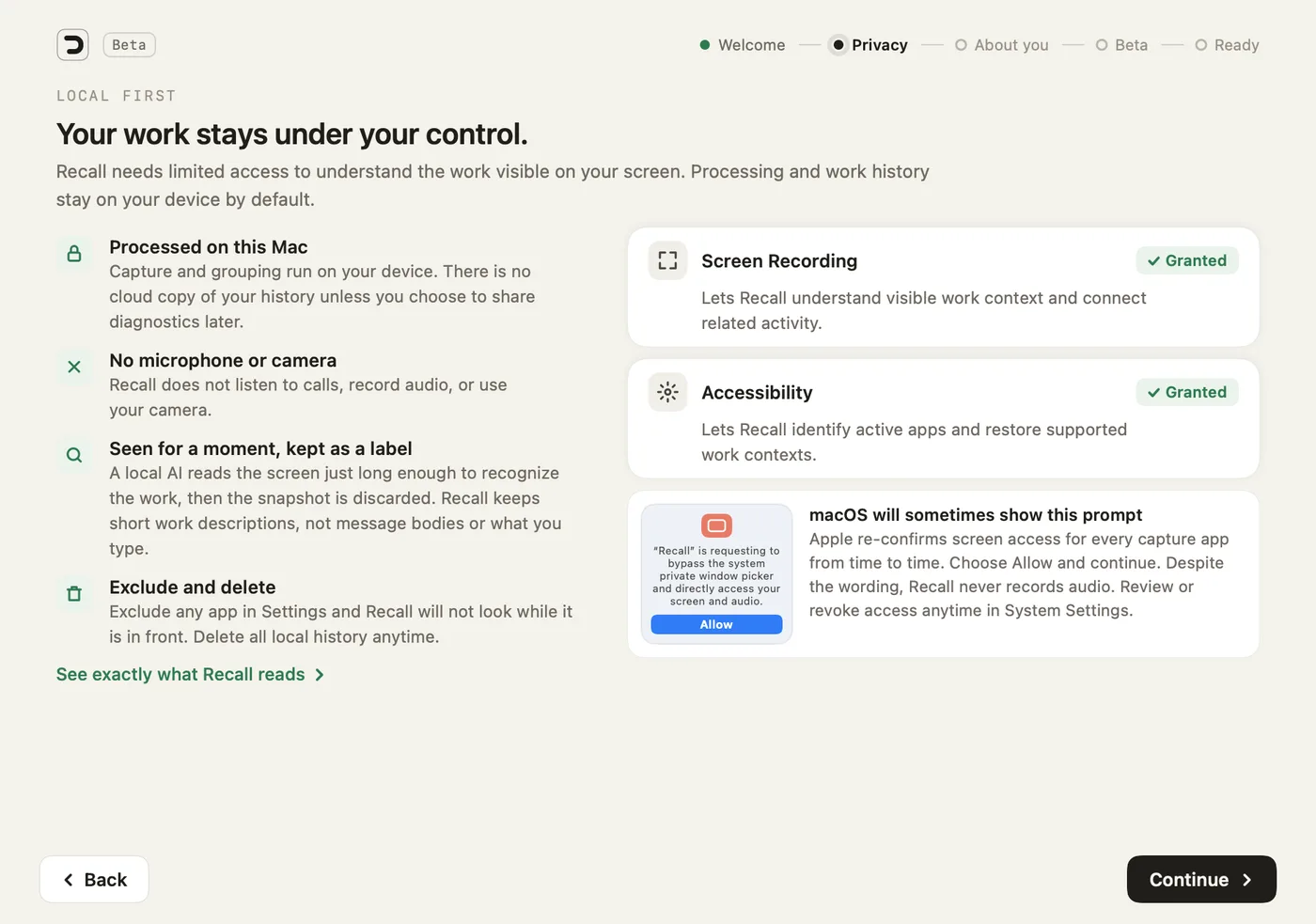
- Granted. Each card turns green once macOS confirms the permission.
- Continue. Now active. Click it to go on.
Step 3: About you
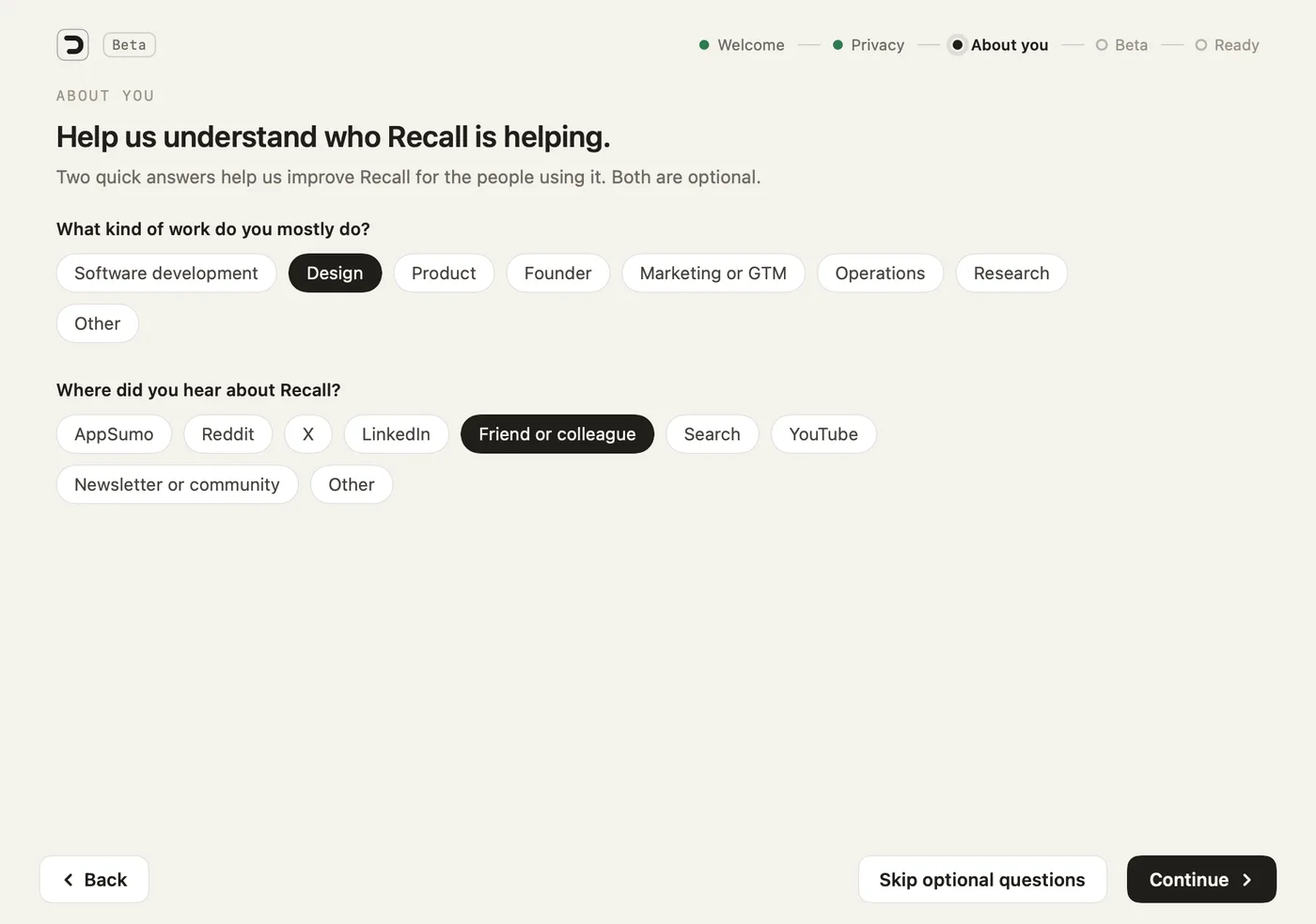
- What kind of work do you mostly do? Pick one. It helps the team see who Recall is helping. It does not change how Recall treats your work.
- Where did you hear about Recall? Pick one, or none.
- Skip optional questions. Both questions are optional. Skip them and nothing is sent.
- Continue. Saves your answers and moves on.
Step 4: Email and beta
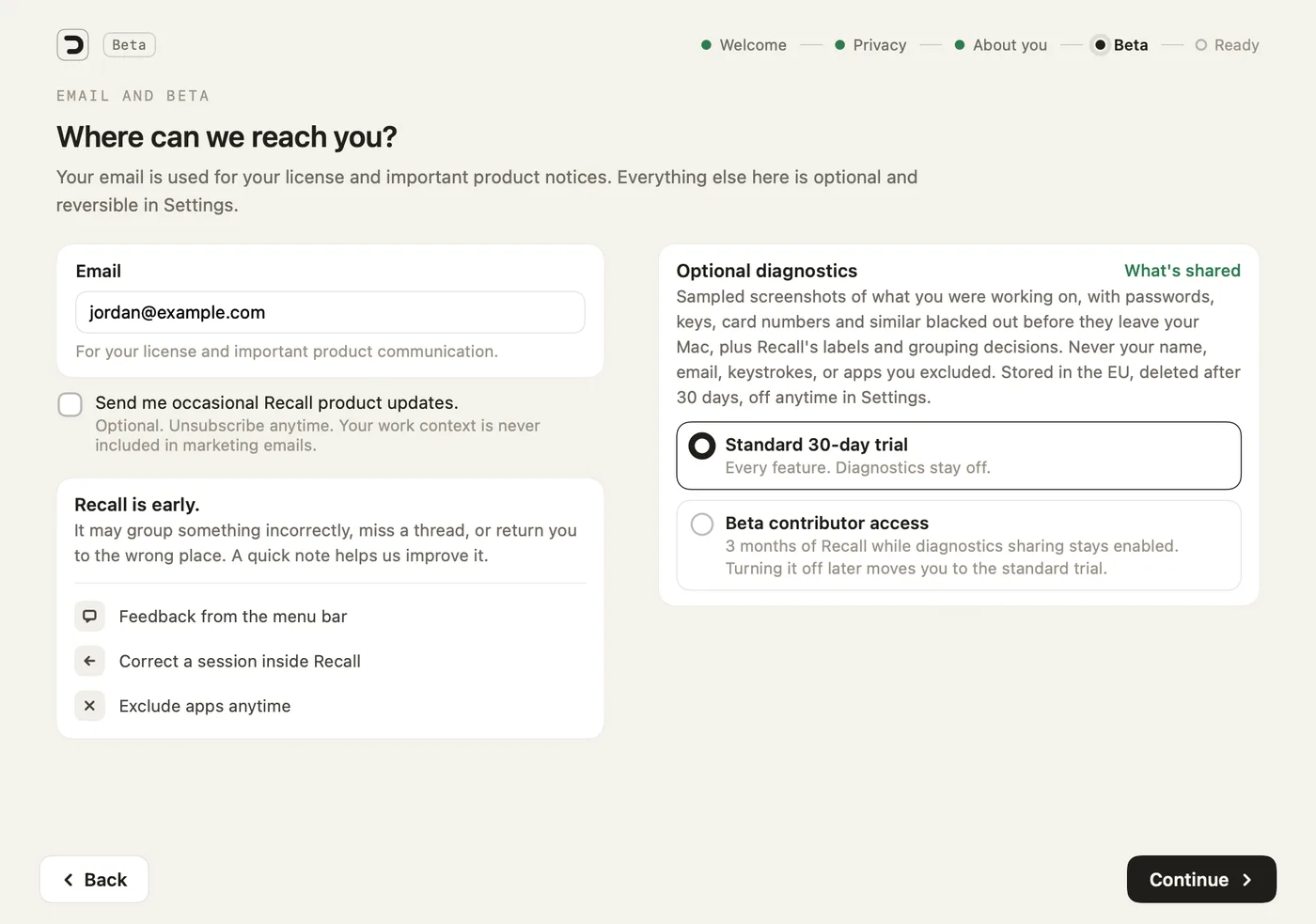
- Email. Used for your licence and important product notices.
- Send me occasional Recall product updates. Off unless you tick it. Your work is never part of a marketing email.
- Recall is early. How to tell us when Recall groups something wrongly or returns you to the wrong place: feedback from the menu bar, correcting a session inside Recall, and excluding apps.
- Optional diagnostics, What's shared. Explains what diagnostics sharing would send: sampled screenshots with passwords, keys and card numbers blacked out on your Mac, plus Recall's labels. Never your name, email, keystrokes or excluded apps. Stored in the EU and deleted after 30 days.
- Standard 30-day trial. Every feature. Diagnostics stay off. This is the default.
- Beta contributor access. Three months of Recall while diagnostics sharing stays on. If you turn sharing off later, you move to the standard trial.
Step 5: Ready
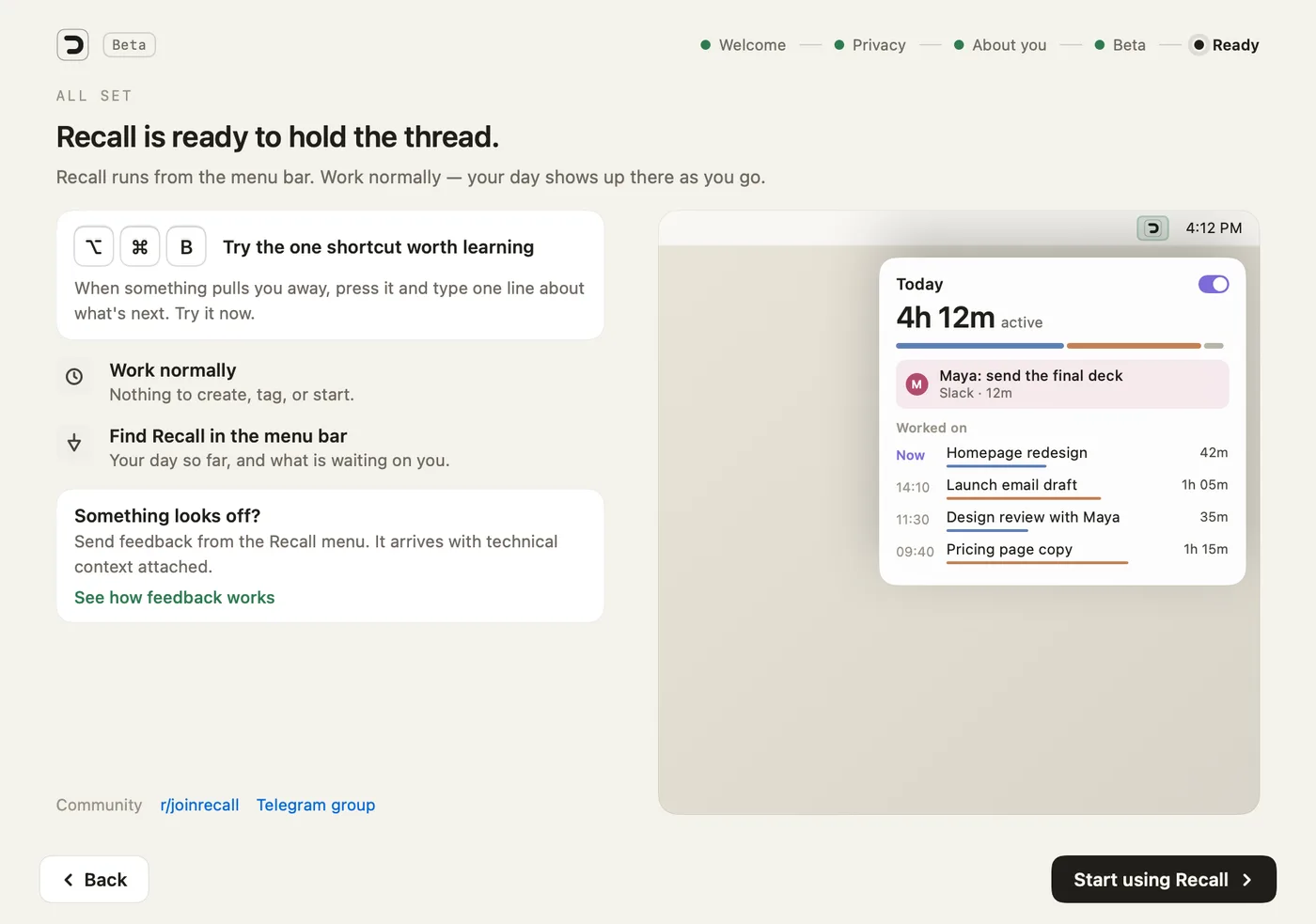
- Try the one shortcut worth learning. Press ⌥⌘B once for real. When something pulls you away, this shortcut lets you type one line about what's next. Practising here doesn't count as using it.
- Work normally. There is nothing to create, tag or start.
- Find Recall in the menu bar. Your day so far and what is waiting on you live there.
- Something looks off? Explains how to send feedback from the Recall menu.
- Menu bar preview. What the tray looks like once Recall has followed some work.
- Community. Links to the r/joinrecall subreddit and the Telegram group.
- Start using Recall. Closes setup. Recall keeps running in the menu bar.
While the AI downloads
You can finish setup while the download runs. Until it is done, the tray shows its progress.
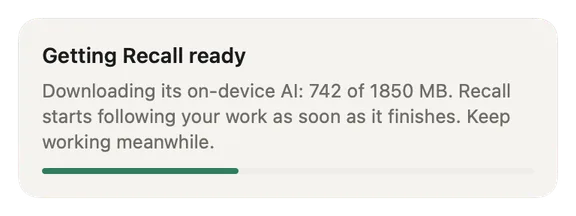
- Getting Recall ready. How much of the on-device AI has downloaded. Keep working: Recall starts following your work by itself as soon as it finishes.
- Progress bar. Fills as the download completes.
What stays on your Mac
Recall looks at your screen about every 15 seconds. A local AI reads each frame just long enough to describe the work, then the image is discarded. What Recall keeps (short descriptions, app names, window titles, timings, your notes) stays in a folder on your Mac. Nothing from your screen is sent anywhere unless you choose to send it with a bug report. See Privacy and your data.
Your trial
The trial lasts 30 days with every feature, and no card is needed to start. With beta contributor access it lasts three months for as long as diagnostics sharing stays on. You can see how many days are left in Settings → Subscription.
Screenshots show a fictional demo day. All people, projects and messages are made up.